You press the power button, wait a few seconds, and your favourite distribution’s desktop appears. In between, a precise choreography unfolds that almost nobody ever sees. From the silence of cold hardware to a fully working operating system there are several chained stages, and at the heart of many of them sits a quiet but indispensable character: GRUB. Understanding that process isn’t just technical curiosity. It’s the difference between being stuck staring at a black screen and knowing exactly where to look when something breaks.
From firmware to the boot loader
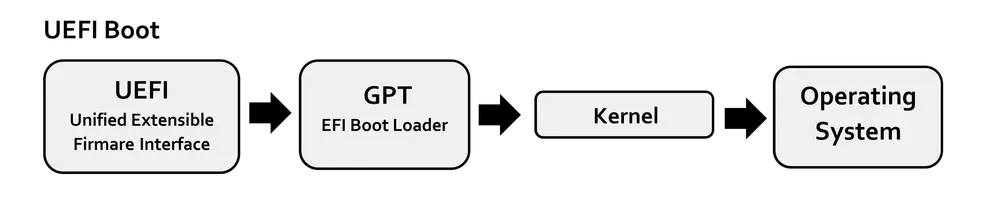
It all starts with the motherboard’s firmware. For decades that firmware was the BIOS (Basic Input/Output System), inherited from the original IBM PC. Today the norm is UEFI (Unified Extensible Firmware Interface), a more modern design that handles huge disks and boots from a special partition called the ESP (EFI System Partition).
Whatever the firmware, its job is the same: check the hardware and hand control over to a boot loader. On classic BIOS that loader lives in the disk’s MBR; on UEFI it’s an .efi executable inside the ESP. The boot loader is the component that knows where the operating system lives and how to load it into memory.
What GRUB is and why it dominates
GRUB stands for GRand Unified Bootloader, and it is by far the most widely used boot loader in the Linux world. Its history goes back to 1995, when Erich Boleyn created it to boot the GNU Mach microkernel. In 1999 it became an official GNU package, and from 2002 Yoshinori K. Okuji began a full rewrite that would eventually be named GRUB 2, while the original became known as “GRUB Legacy”. By the end of 2009 the major distributions were installing GRUB 2 by default, and that is the GRUB you use today.
Its primary job is simple to state and complex to execute: load the Linux kernel into memory and start it. But GRUB does more. It presents a menu where you choose between different operating systems or between several kernel versions, which saves the day when an update breaks something and you need to fall back to an earlier kernel. Distributions such as Debian, Ubuntu and Fedora rely on GRUB for exactly that flexibility.
The menu, the configuration and kernel parameters
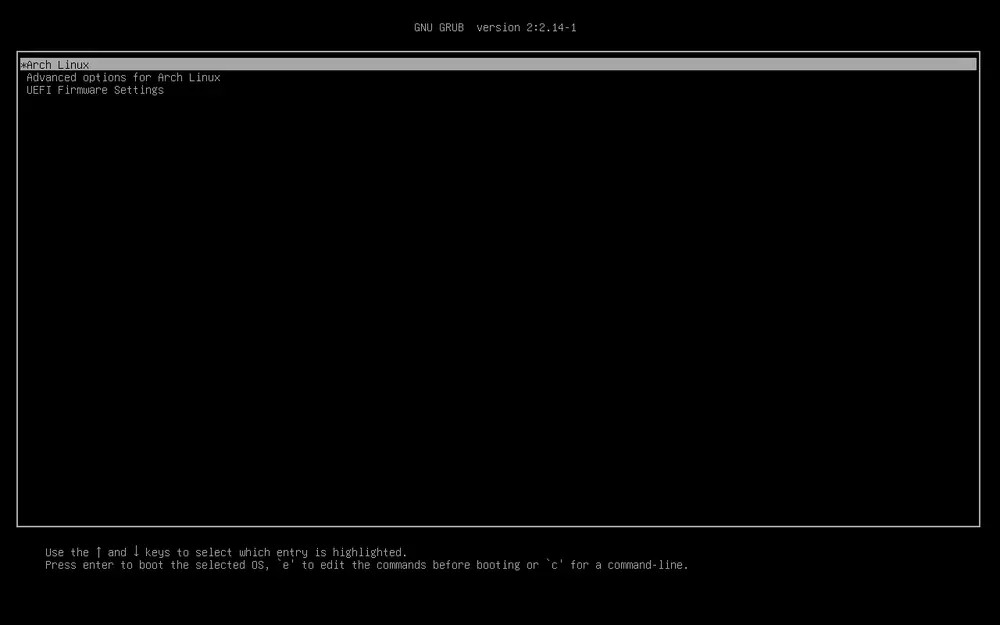
On a modern system, GRUB’s files live in /boot/grub, with the menu generated in grub.cfg. You don’t edit that file by hand: it’s built automatically from the scripts in /etc/grub.d and from your preferences in /etc/default/grub. There you set things like the menu timeout or the kernel parameters, the options passed on the boot line (for example quiet splash for a silent boot, or nomodeset when the graphics card misbehaves).
Knowing where to poke is what counts. If your machine boots to a black screen, you can often edit the kernel line temporarily from the GRUB menu itself by pressing e, and you’re out of trouble without reinstalling anything.
initramfs: the bridge to the real system
Once GRUB loads the kernel, it initialises the CPU, memory and basic devices. But there’s a chicken-and-egg problem: to mount the root disk, the kernel needs drivers (for your SATA or NVMe controller, for encryption, for the filesystem) that often live inside that very disk it can’t read yet.
The answer is the initramfs (successor to the old initrd): a small temporary filesystem that GRUB loads into memory alongside the kernel. It carries just the modules needed to find and mount the real root filesystem. Once mounted, the kernel runs switch_root and hands control to the final system. That’s where the init process starts, today almost always systemd, which brings up every service until it leaves you at the login prompt or desktop.
systemd-boot and dual boot
GRUB isn’t the only option. On modern UEFI machines, systemd-boot is gaining ground: a far lighter loader, just a few thousand lines of code, that leans directly on the UEFI firmware instead of loading “almost an entire OS” the way GRUB does. In exchange it can only launch EFI executables from the ESP (or an additional XBOOTLDR partition), so it’s less flexible. Distributions aimed at advanced users, such as Arch, let you choose comfortably between the two.
Dual boot — running Linux and another system on the same machine — is one of the scenarios where GRUB shines. When you install a distro next to Windows or macOS, GRUB detects the other systems and adds them to the menu on its own. That’s why it’s wise to install the other system first and Linux second: GRUB then takes over the boot and lets you choose every time you power on.
Conclusion
The Linux boot is a logical, understandable chain: firmware (BIOS/UEFI) → boot loader → kernel + initramfs → init (systemd). GRUB is the link that connects your hardware to your system, gives you the power to choose, and offers a rescue route when things go sideways. Whether you use the veteran GRUB or the minimalist systemd-boot, understanding each stage turns you into a user who doesn’t fear the black screen but knows how to read it. And in Linux, that knowledge always pays for itself.
Sources: GNU GRUB Manual: History, ArchWiki: systemd-boot.